
How to add NOL card to Samsung Wallet
Thinking about How to add NOL card to Samsung Wallet? The process of adding a NOL card to Samsung Wallet is not the same as adding a bank card. There’s an additional step in between. You must first digitize your Silver or Gold NOL card using the official NOL Pay app in order to use it on a Samsung Galaxy phone.
The NFC on your phone and Samsung Wallet are then compatible with that digital card. Your phone then serves as your NOL card at Metro gates, buses, trams, and numerous retail establishments.
Can you use Samsung Wallet to add an NOL card?
Yes, but not from the plastic card itself. NOL can be handled by Samsung Wallet, but it cannot scan the card on its own. The actual flow is as follows.
Make a digital copy of your Silver or Gold card with NOL Pay. Your Samsung phone safely stores that digital NOL card. Your phone can become a contactless NOL card with Samsung Wallet and NFC. Samsung Wallet offers the payment interface at gates and readers, while NOL Pay handles the actual transport card.
What You Must Have Before You Begin.
Make sure you have all the prerequisites in place before attempting to add your Nol card to Samsung Wallet. The setup may not be successful if even one of these is missing.
Requirements and Eligibility.
The following are the requirements and eligibility for how to add NOL card to Samsung Wallet:
Compatible phone:
Any Samsung Galaxy device that supports Samsung Wallet and NFC, such as the Note10+, Z Fold/Flip series, Galaxy S22/S23/S24 series, or some series models.
Location/region
Only supported markets such as the UAE CSC offer Samsung Wallet transit features (Nol). The transit card option might not appear to users with an India CSC.
Apps required
You must install and update the most recent versions of the Nol Pay and Samsung Wallet apps.
NFC: In order to use gate payments, NFC needs to be enabled.
How to add a NOL card in samsung wallet
Follow these methods.
Method 1
Put the NOL card straight into the Samsung Wallet.
If you see the transit card’s Nol Card option, this is the fastest way. Quick Direct Addition Steps.
- On your Galaxy smartphone, launch the Samsung Wallet app.
- Click “All” or go to your list of cards and choose “Transit cards.”
- From the options, select Nol Card.
- Observe the on-screen directions.
- Accept the guidelines.
- Choose between silver and gold cards.
- Finish any necessary linking or verification procedures.
- Your Nol card can be used right away by tapping your phone at RTA readers once the setup is complete.
- It will show up in Samsung Wallet as a transit card.
The best time to use this method.
Devices bought or activated in the United Arab Emirates or other compatible regions function best with direct addition. Transit and Nol cards ought to be visible under Samsung Wallet \u2192 Add card. The alternative Nol Pay method can be utilized in the event that this option is absent.
Method 2: Use Samsung Wallet after digitizing the physical Nol card in Nol Pay.
You can first use the Nol Pay app to digitize your physical Nol card if your device does not support the direct method or if the transit option is not visible.
Step 1
- The first step is to digitize your physical Nol card.
- From your app store download and launch the Nol Pay app.
- Select Get my Nol card (or Get your Nol card) from the home screen.
- Choose Digitize Physical Nol Card.
- After reading the confirmation that only Silver and Gold cards are eligible for digitization, click Next.
- Select your card type (Gold or Silver) and, if prompted, confirm any applicable fees.
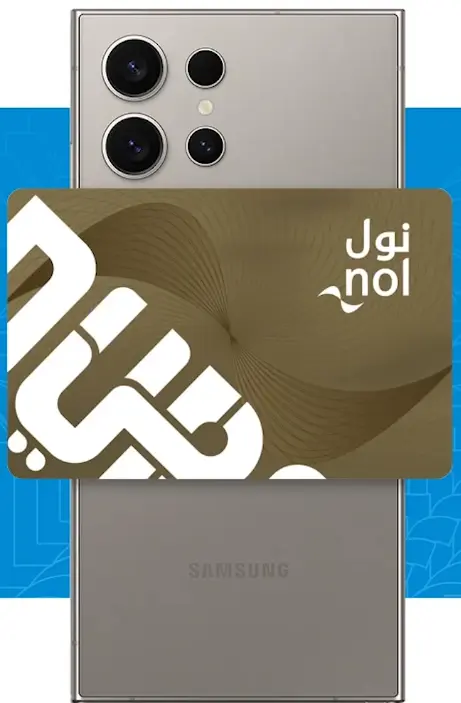
- To enable NFC to read your actual Nol card, place it on the back of your Samsung phone.
- Turn on NFC when prompted.
- Hold off while the balance and card information are transferred.
- After the reading is finished, activate your digital NOL card by tapping Continue.
- The digital NOL card will be issued in a few minutes, and you will be notified when it is prepared.
Important: Only the digital Nol card on your phone will be functional after digitization; the physical Nol card will no longer be usable.
Step 2: Use the Samsung Wallet with the Digitized Nol Card.
- Adding a digital Nol card to your Samsung Galaxy is how Samsung describes this procedure, which enables tap-to-pay at RTA gates and merchants that take Nol.
- Like a standard transit card, you can tap your phone at gates without opening any apps thanks to the digitized Nol card’s integration with Samsung Wallet on compatible devices and in enabled regions.
- Note on community reports.
- Start by using the Nol Pay app to digitize your actual Nol card.
- Once digitalized, the NOL card feature can be found in Samsung Wallet as a transit option (if supported).
How to Use Nol on Buses and Gates with Samsung Wallet.
Once digitized, using your NOL card on public transit is simple. at buses, trams, and metro gates. Use your digital NOL card in accordance with these rules when using public transportation. Additionally, if your card is stolen or lost, you can also get a refund.
Turn on NFC:
- Since contactless reading requires NFC, make sure it is enabled in your phone’s settings.
- Using Samsung Wallet to access Nol.
- To use the NOL card reader at entry or exit gates, just tap the back of your Samsung phone.
- For express transit on compatible devices, you usually don’t have to unlock your phone. According to some users, it even functions when the phone is in power-reserve mode and turned off.
- If the Wallet transit option isn’t available, use Nol through the Nol Pay app.
- Before you tap the reader with your phone, open the Nol Pay app.
- The fare will be subtracted from your NOLS balance.
Internet or mobile data requirements.
Following are the Internet or mobile data requirements.
Offline use:
Gate payments can be made without the Internet. After being provisioned on your device, the digital NOL card operates offline.
Online use
Only initial online balance checks and app recharging require data or Wi-Fi.
Taking Care of and Refilling Your Digital Nol Card.
It’s simple to monitor your card balance and recharge it.
Checking the history and balance.
To see your card status, recent travels, and remaining balance, open Nol Pay. Samsung Wallet may display basic balance information, but the Nol Pay app is needed to view detailed history.
Replenishing Your Digital Nol.
Use linked bank cards or other approved methods to recharge using Nol Pay. Top-up via online portals, kiosks, or channels that support RTA. Note: Nol recharges are normally not supported at bus stops.
Region and Device Compatibility.
- Compatible models from Samsung: Galaxy S24 Ultra, S24+, S24, and S23 series.
- Foldables: Galaxy Z Flip5/Flip4/Flip3, Galaxy Z Fold5/Fold4/Fold3.
- A series: Certain models like the Galaxy A71 and A80. CSC issues and regional restrictions. Nol is typically fully supported in Samsung Wallet on phones sold in the UAE. The transit card option might not be visible on India CSC phones; digitization through Nol Pay is still an option.
Samsung customers.
Nol card digitization has been supported by Samsung devices since 2023. It is only possible to digitize silver and gold cards after the transfer is finished and the physical card is deactivated.
Select Add NOL Card after opening the Samsung Wallet app on your phone and selecting Transport Card. To finish setting up the digital card, follow the on-screen directions, which will take you to the Nol Pay app.
Solving Common Problems.
Even with the right configuration, small problems can occur.
1.No cards or transit cards are displayed.
- Make sure Samsung Wallet is up to date.
- Verify the region and CSC support for Nol transit on your phone (e.g., the UAE).
- Check for compatibility with the model of your device.
- Use Nol Pay exclusively to digitize and make payments if they are still missing.
2. At the gates NFC is not reading Nol.
- Turn on NFC in the settings.
- Tap the NFC antenna on the back of your phone, which is typically located in the upper middle.
- If there is more than one transit card, make sure the digital NOL is the default.
- Physical Nol continues to be charged.
The physical card should become inactive after digitization. Check the Nol Pay app again if charges continue or get in touch with RTA support.
Conclusions.
By enabling easy fare payments and balance management, adding your Nol Card to Samsung Wallet streamlines your travel experience in Dubai. Take advantage of digital integration to ensure efficient and seamless travel. There are two primary ways to add a Nol card to a Samsung device: either digitize your physical card using the Nol Pay app or do so directly within Samsung Wallet by going to Transit cards > Nol. The physical card becomes inactive after the digitization process is finished, and only Silver and Gold NOL cards are eligible.
Nol in Samsung Wallet works like a real transit card on UAE-compatible devices. You just need to tap your phone at RTA gates frequently without having to unlock it. Once the digital wallet has been added to your phone, it operates offline, so no mobile data is needed to pay fares. It is crucial to remember that region or CSC settings are important. Some users, like those with India CSC devices, might not see the NOL transit option in Samsung Wallet and will have to use the Nol Pay app directly.